Turbulent Flow Analysis in a Pipe
MODULE
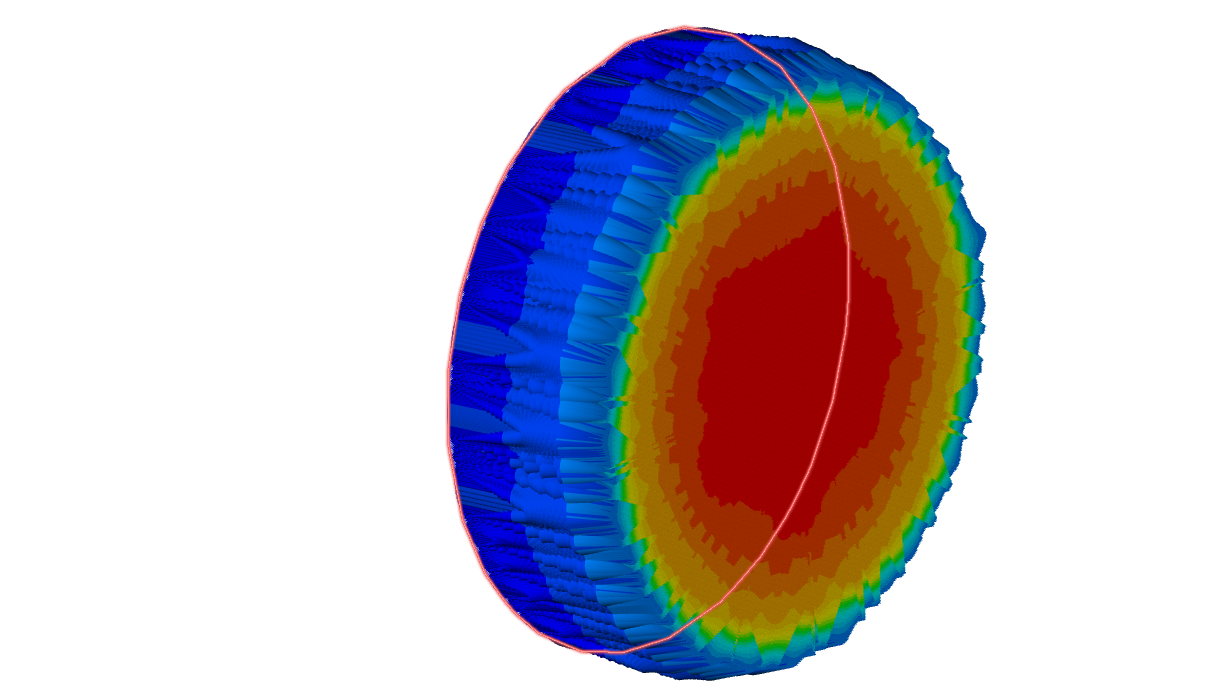
AIM
To investigate the pressure drop and visualize the velocity profile in turbulent flow through a pipe.
QUICK PEEK INTO THE TEXTBOOK
Review the TEXTBOOK to refresh your understanding of basic concepts before advancing to more complex material.
SimScale Tutorial: Turbulent Flow in a Pipe
This tutorial aims to investigate the pressure drop and visualize the velocity profile in turbulent flow through a pipe.
Flow Simulation Set Up
Dimensions
A cylindrical pipe with a diameter of 0.01 𝑚, and a length of 1 𝑚.
Analysis Type
Incompressible steady-state analysis.
Turbulence Model
k-omega SST
Mesh and Element Types
Wall functions on the walls. For the wall functions, the desired 𝑦+ range is [30 , 300]
Fluid: Water
Initial Conditions
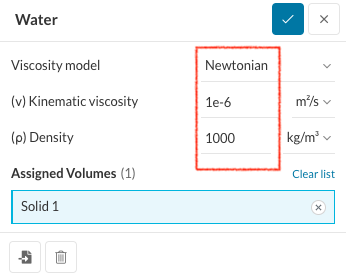
- (𝜈) Kinematic viscosity = 10−6 𝑚2 /𝑠
- (𝜌) Density = 1000 𝑘𝑔 /𝑚3
- Turbulent kinetic energy (𝑘) of 3.84e-3 𝑚2 𝑠2
- Specific dissipation rate (ω) of 88.53 1/𝑠
- Dissipation rate (ε) of 3.059e-2 𝑚2 𝑠3
Boundary Conditions
- Velocity inlet of 1 𝑚 𝑠
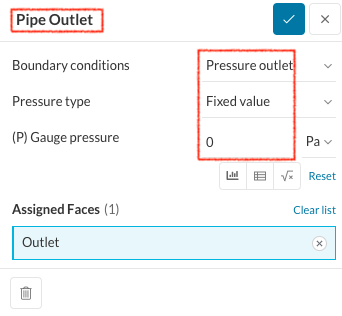
- Pressure outlet of 0 𝑃𝑎
- No-slip walls with wall functions
Velocity Profile
The velocity profile for turbulent pipe flow is approximated by the Power-law velocity profile equation:
𝑢’𝑦(𝑟)=𝑢’𝑦𝑚𝑎𝑥((𝑅−𝑟)/𝑅)1/𝑛
where:
- u𝑦𝑚𝑎𝑥: the maximum y-velocity of the cross-section (along the pipe axis)
- 𝑅: the radius of the cylinder
- 𝑟: the distance from the center of the cross-section
- 𝑛: a constant that depends on the Reynolds number, estimated as 7 for this case
For turbulent flow, the ratio of u𝑦𝑚𝑎𝑥 to the mean flow velocity is a function of 𝑅𝑒. In this case, this ratio is calculated to be 1.224.
Pressure Drop
Pressure Drop is given byΔ𝑃=𝑓 (𝜌 𝑢2 𝑙2/𝑑). According to the Moody diagram, the value of 𝑓 is 0.0309.
Let’s now delve into the SimScale process one step at a time for this particular problem.
Just a heads-up: The ideal way to begin is by creating a ‘New Project‘ and then importing the CAD model. However, we’ve already taken care of the steps for you, including importing the CAD model. You can get started right away with the ‘Create Simulation‘ step.
Prepare the CAD Model and Select the Analysis Type
Open a ‘New Project’ & import the CAD model
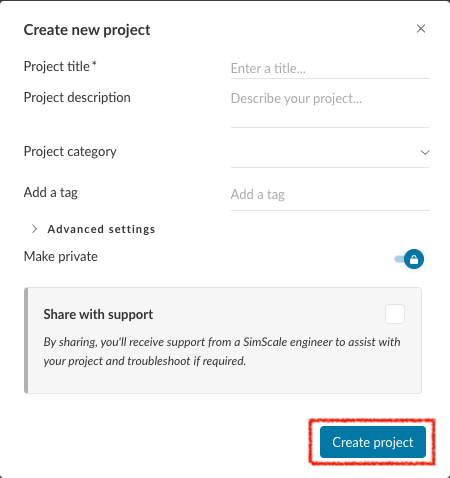
- Click open the new project, and fill the details as following dialogue box appears.
- Once details are entered, Click ‘Create Project‘.
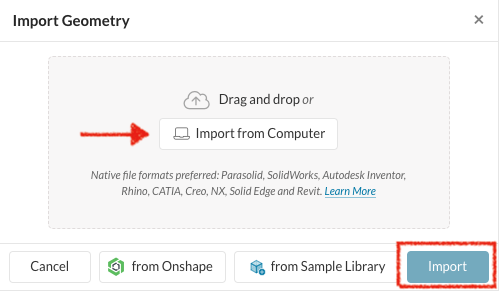
- Click + next to GEOMETRIES, and import the CAD model
Create Simulation
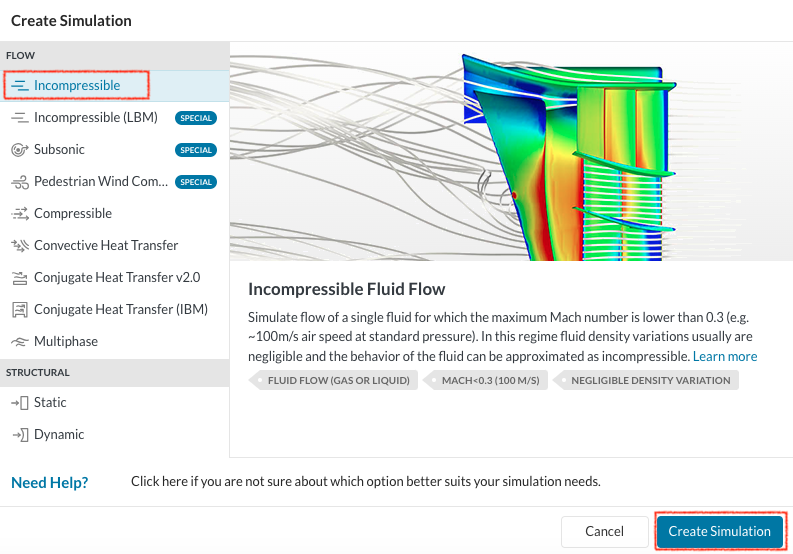
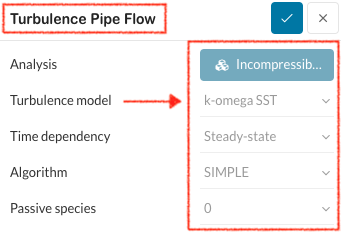
- Select ‘Incompressible’ and click Create Simulation
- Once the Simulation has been created, you can rename it, and choose ‘K-Omega SST‘ to be the Turbulence model and edit the other characteristics as shown here.
NOTE: Just a heads up, this problem doesn’t come with probe points like the last one with laminar flow. So, go ahead and make your own probe points for the geometry.
Assigning the Material and Boundary Conditions
Define a Material
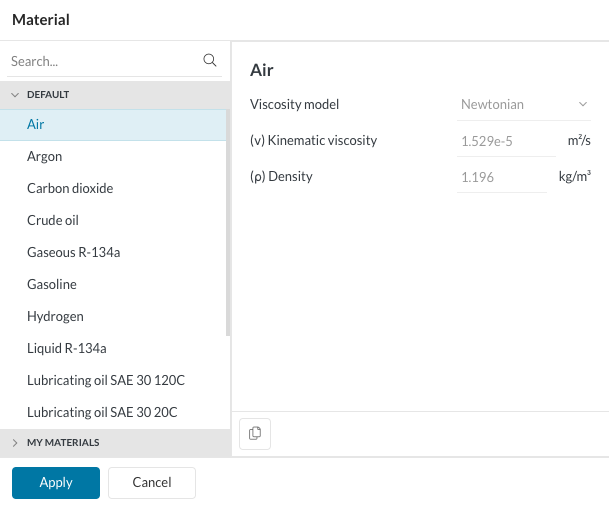
- Select ‘Air’ by clicking ‘+’ next to ‘Material’.
- Edit the values of the default coefficients to the set values as given in the image.
Define the Initial Conditions
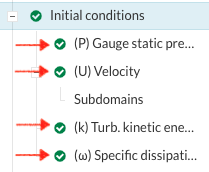
- Set the Initial Conditions, namely
- (P) Gauge static pressure = 0 Pa
- (U) Velocity(Global) = 0 m/s
- (k) Turb Kinetic Energy = 3.84e-3 m²/s²
- (w) Specific Dissipation Rate = 88.53 1/s
Define Boundary Conditions
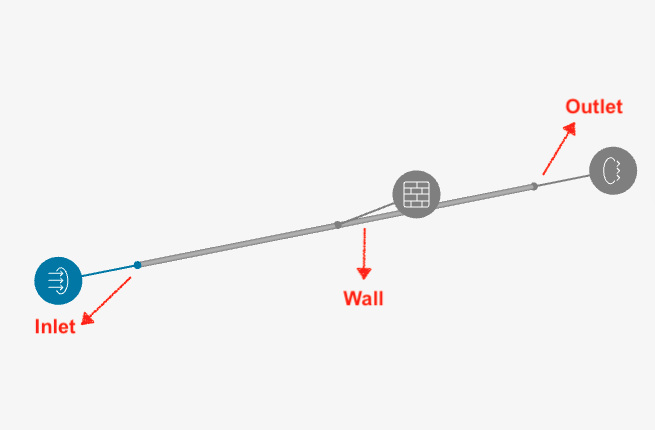
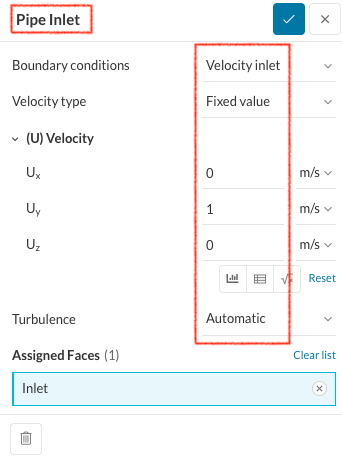
- Set the Inlet boundary condition.
- Set the Outlet boundary condition.
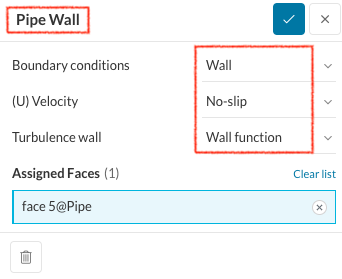
- Set the Wall boundary condition.
Numerics and Simulation Control
- Set the ‘Numerics’ as given in the ‘FINISHED PROJECT’.
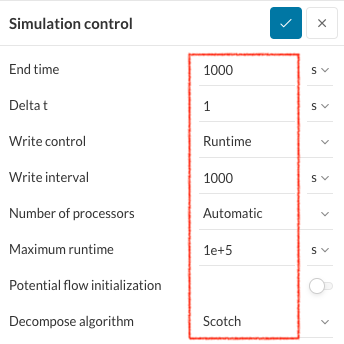
- Input the following values under the ‘Simulation Control’.
Result Control
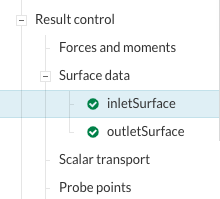
- Below ‘Result Control’, click ‘+’ next to Surface Data, and enter the following values.
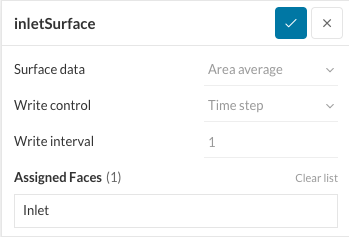
- Now, it’s time to set up the ‘Area Average‘ for the inlet and outlet, (i..e, where we wish to calculate the pressure ) by selecting the corresponding faces.
- Repeat the same for ‘Outlet Surface‘, by selecting ‘Outlet’ as the assigned face.
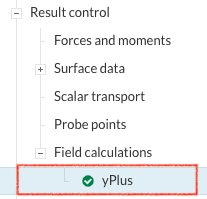
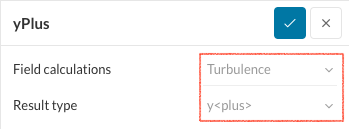
- Now, Click the ‘Field Calculations’, and set ‘yPlus’.
Mesh Generation
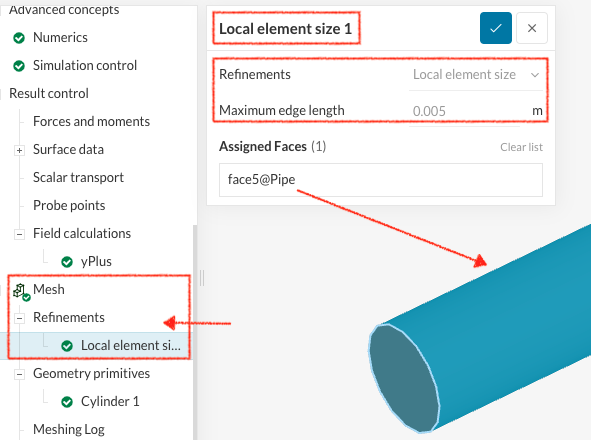
- Click on Mesh, and Click ‘+’ next to Surface Refinement, and add the given(on the left) surface refinement for the pipe surface as given below.
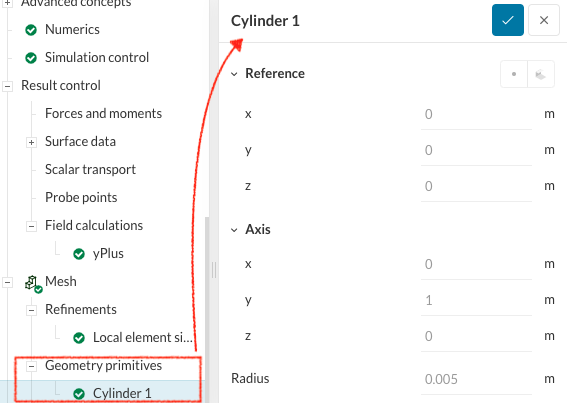
- Similarly, Click ‘+’ next to Geometry Primitives under the Mesh Settings, and choose Cylinder from the drop-down menu, and set its dimensions.
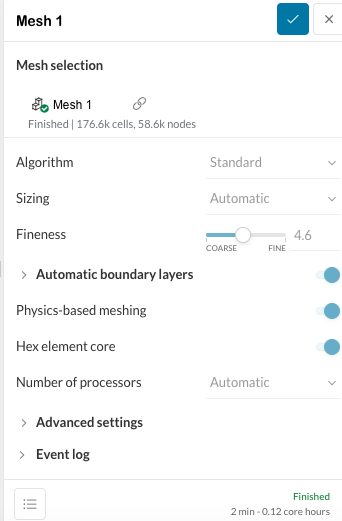
- Following which, click on Mesh, and make changes to the Mesh Settings.
- Following the above, Click Generate to generate Mesh, and wait for the mesh to get generated.
NOTE: Check the Event Log below the dialogue box once the mesh is generated to check for the mesh quality before proceeding. If the mesh is not correctly generated, Simulation Run in the next stage can get terminated prematurely.
Simulation
To initiate the simulation, follow these steps:
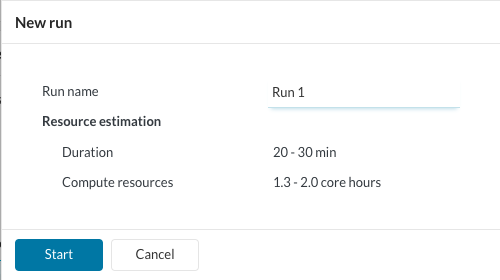
- Expand the ‘Simulation Runs’ section by clicking on the ‘+‘ symbol.
- Then, select the ‘Run’ option to start the simulation process. This action will prompt the software to execute the simulation based on the defined parameters and settings.
Post- Processing
- Once the simulation is ‘Complete‘, you can access the post-processing environment by clicking on ‘Solution Fields’ or ‘Post-process results’.
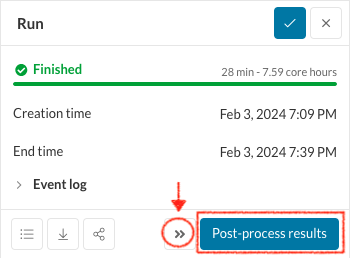
After checking the residuals, if you think it has not yet been converged, you will see the “Continue to run >>” icon, in which you can enter the end time to be your present end time and increase the maximum run time.
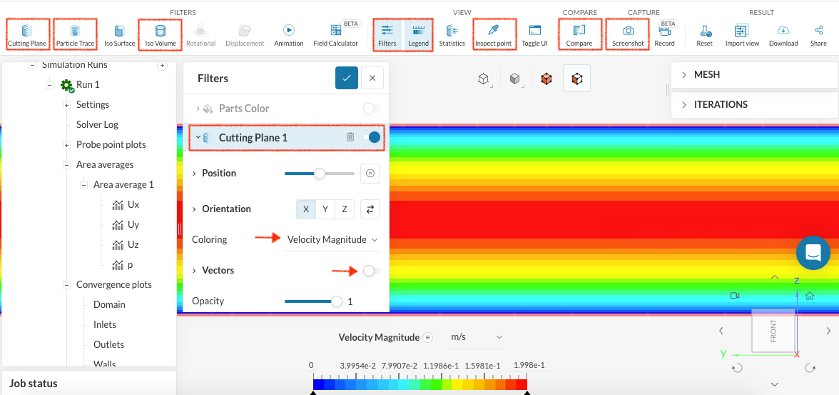
If not, continue by selecting ‘Post-process results.’ See below for all available post-processing options in SimScale:
- Cut Plane: Slice the domain to visualize parameters on the plane.
- Vectors: Plot vector fields to represent quantities like velocity or force.
- Contour Plot: Display scalar field data using contour lines.
- Probe Points: Insert points to extract data at specific locations.
- Particle Trace: Generate streamlines from seed faces to observe flow patterns.
- Iso Surface: Highlight regions with specific scalar values.
- Iso Volume: Highlight regions within a defined scalar value range.
- Rotational View: Inspect rotational regions by creating blade-to-blade views.
- Animation: Create animations of simulation results.
- Field Calculator: Generate new fields using predefined functions and operators.
- Compare: Visualize result fields from two different simulations side by side.
Please refer to the accompanying image to explore the full range of available options for post-processing. These options provide diverse tools for analyzing and visualizing simulation results in SimScale.
Pressure Drop
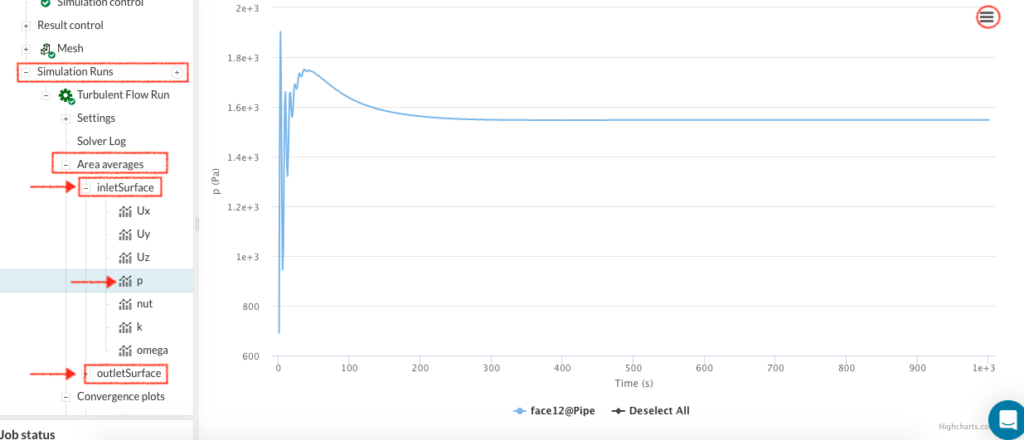
- Navigate to the ‘Simulation Run’ section.
- Click on ‘Area Averages’.
- Select ‘p’ to display the plot showing pressure values for both the inlet and outlet faces of the pipe across each iteration.
- Option 1: Click on the dropdown icon at the top-right corner to download the .csv file. Download the CSV file and observe the converged ‘p‘ values corresponding to the end time.
- Option 2: Alternatively, check the final value directly from the live plot at the end time.
Velocity Profile
We didn’t cover how to get the velocity profile using probe points this time, unlike in the laminar flow analysis. It’s your turn now to give it a shot for the turbulent flow analysis!